Note
Why this matters for CivAll Social. Giving someone CivAll Social access is one checkbox on a platform-wide profile. The same person may have a completely different level of access in CivAll Archive, or none at all — and changing one never changes the other.
The four tabs in Settings
| Tab | What lives there |
|---|---|
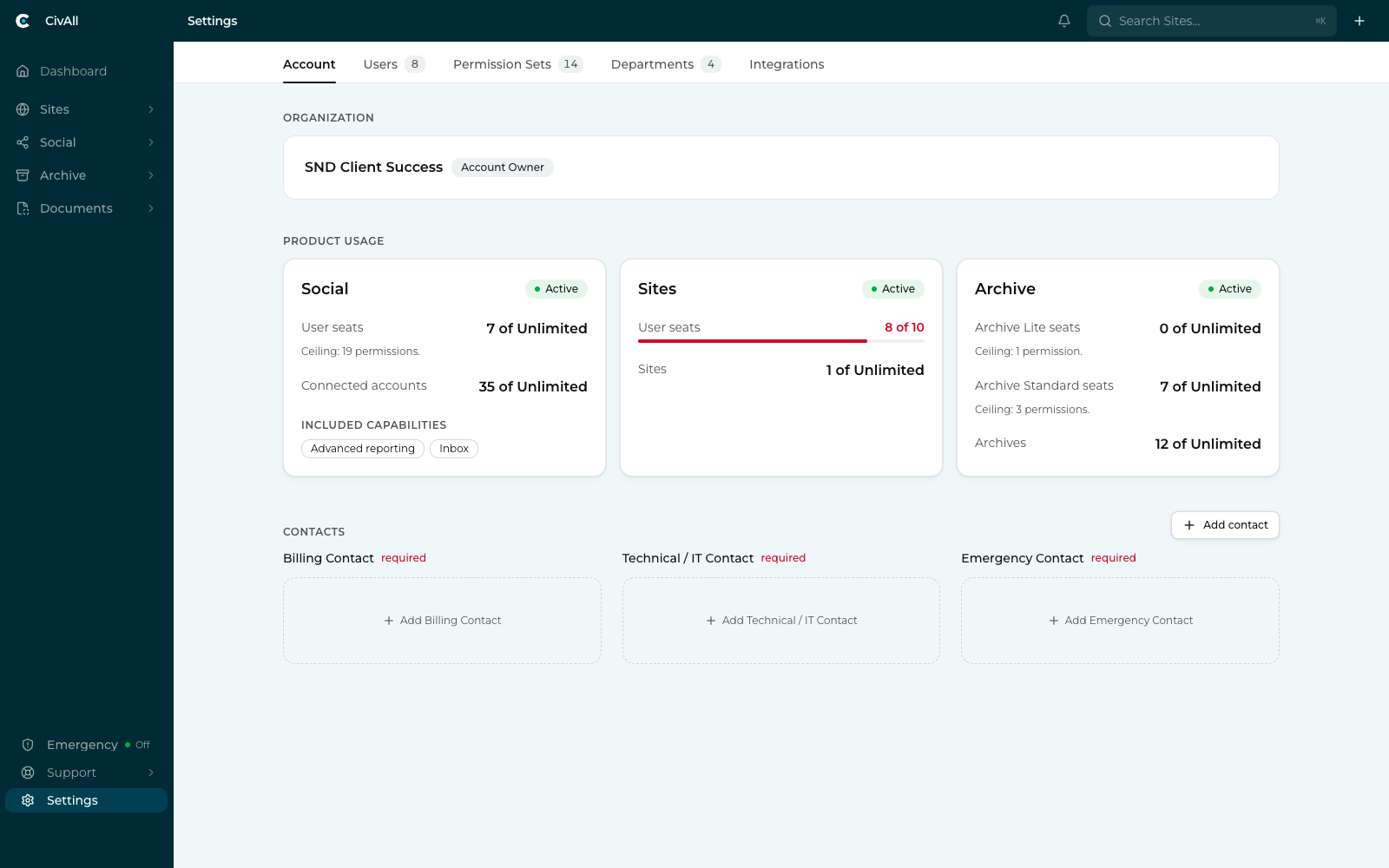
| Account | Your organization, which products are active, how many seats you’ve used, and your billing, technical, and emergency contacts. |
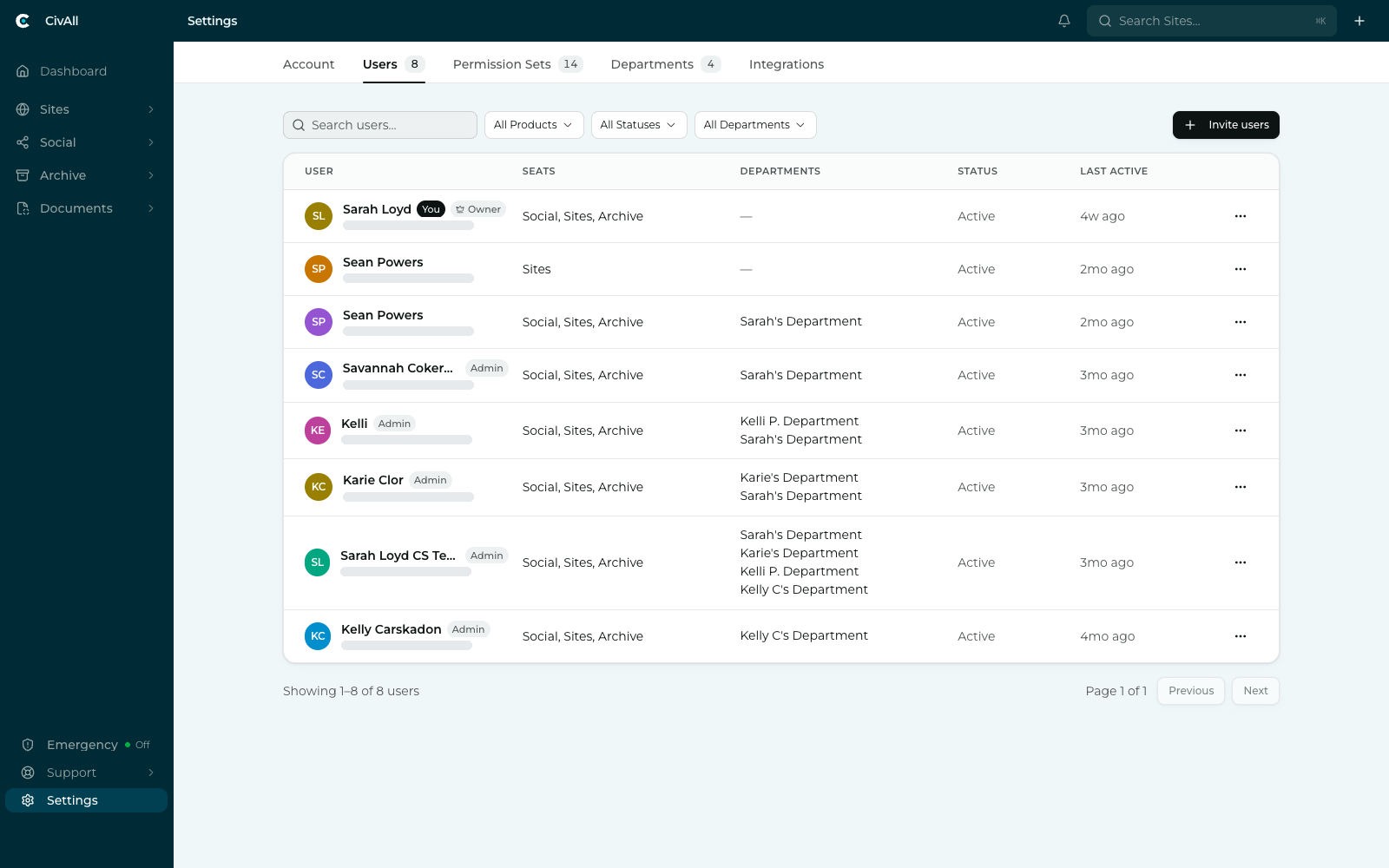
| Users | Everyone in the organization, with the products they hold seats in. |
| Permission Sets | The access profiles you assign, per product. See Permission sets explained. |
| Departments | Groupings of people used to scope access. See Departments explained. |
Two more tabs appear only when they apply to your organization: Integrations and Authentication (single sign-on).
Watch: departments and inviting users
A one-minute walkthrough of creating departments and inviting a user. You can also watch it on YouTube. For more on departments, see Departments.
Invite someone
- Go to Settings → Users and click Invite users.
- People. Enter one or more email addresses, separated by commas or line breaks. An address that already belongs to a member or has a pending invitation is flagged, and you remove it to continue. You can optionally copy permissions from an existing user.
- Products & Permissions. Choose which products they get, and the permission set for each. This is the important step — see below.
- Departments. Assign their departments.
- Review & Invite. Check the summary and send the invitations. Each person receives an email with a link to set up their account.
Important
Invitation links expire after 7 days. If one lapses, open the menu on that person’s row in the Users tab and choose Resend Invitation.
Granting access product by product
Open any user and the Access tab shows a row per product. Check a product to give them a seat in it, then pick the permission set that governs what they can do there.
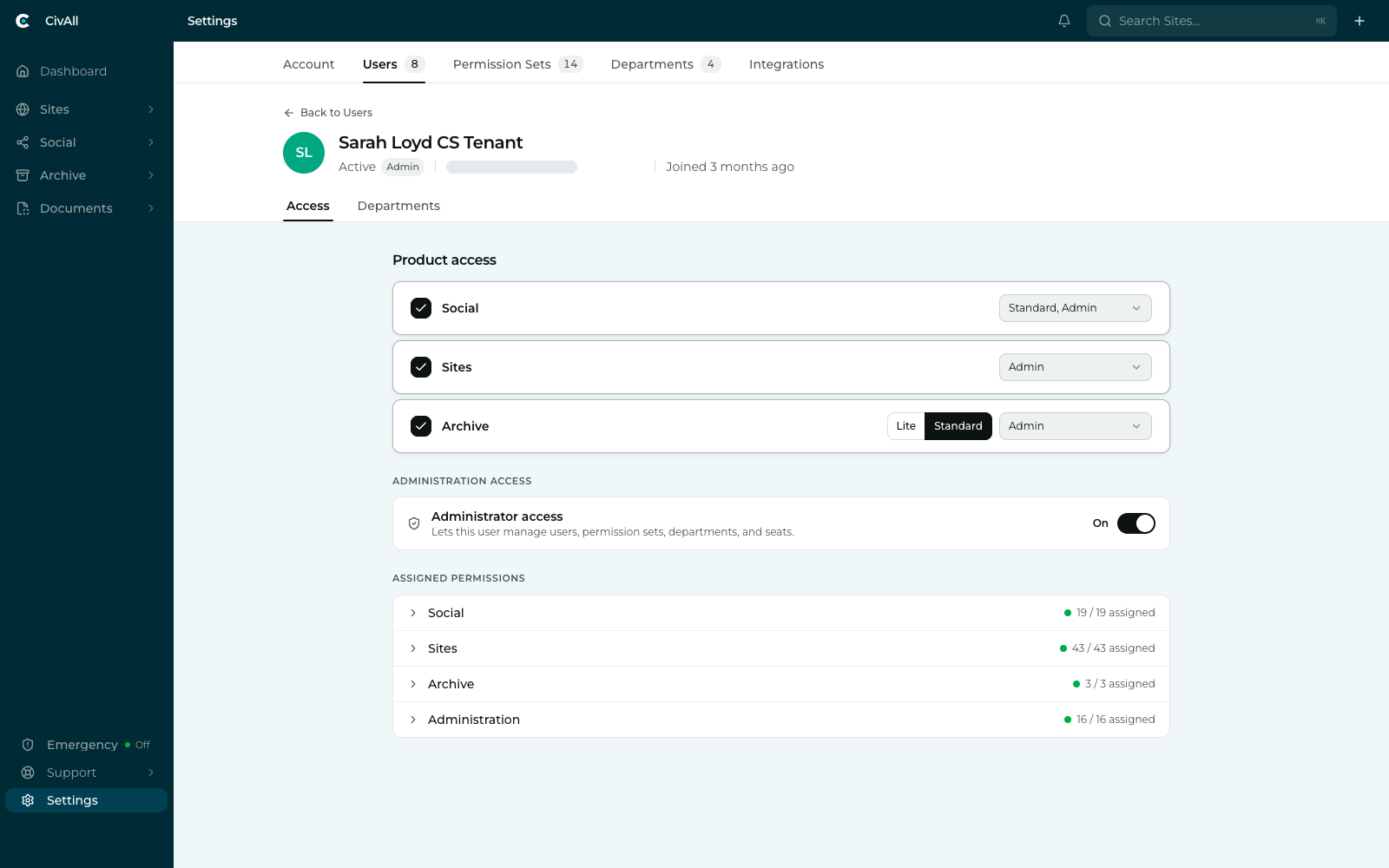
- Each product is set separately. Someone can be a Social Admin and have no CivAll Sites access at all — leaving a product’s set as Select… means they simply don’t work in it.
- Some products have seat tiers. CivAll Archive distinguishes Lite from Standard seats, which is billed differently. CivAll Social has a single seat type.
- Assigned permissions at the bottom summarizes what they ended up with in each product — expand any row to see the individual permissions.
Important
Administrator access is separate from every product. It’s its own switch, which only the Account Owner can change, and it lets the person “manage users, permission sets, departments, and seats” across the whole platform. Being a Social Admin does not confer it, and turning it on does not give them access to any product they don’t already hold.
Seats and what they cost you
Checking a product consumes one of that product’s seats. The Account tab shows where you stand for each — some plans are unlimited, others are capped (for example 6 of 10 CivAll Sites seats), and it also tracks connected social accounts and the capabilities your plan includes.
Tip
If a capability such as Inbox or Advanced reporting isn’t part of your CivAll Social plan, no permission set can grant it — the plan sets the outer boundary, and permission sets divide up what’s inside it.
Editing and removing
Open a user to change their product access, sets, departments, or administrator switch at any time. Changes take effect immediately — there’s no separate publish step. Narrowing someone’s access applies instantly; broadening it can take up to about a minute to appear, and they may need to refresh. An email address can’t be changed from this panel.
Removing a user is immediate and can’t be undone, but it doesn’t delete their work:
- Scheduled posts they created still publish — publishing rights are checked when a post is scheduled, not when it sends.
- Posts awaiting their approval stay put. They aren’t reassigned or voided, so if you remove an approver, update the affected approval workflow or those posts will stall.
Important
The Account Owner is shown on the Account tab and can only be changed by CivAll’s internal team — so an organization can’t accidentally lock itself out of its own administration.