What a template stores
A template holds a name, a scope (Personal or Org-wide), the post content per network, its media, the selected accounts, any labels, and placeholders. It never stores a schedule, date, or approval state — a template is content only.
Tip
Media is copied into template storage when you save, so a template’s images never break later. Using a template creates a fresh post with its own copy — editing the template afterward doesn’t change posts you already made from it.
Create a template
- From scratch: open the Templates library (From a template on the Publish dashboard) and click New template. The composer opens in template mode — you’ll enter a Template name, turn on Share with organization if it should be org-wide, and click Create template (there are no schedule or publish actions).
- From a post: click the Save as template button at the bottom left of the composer. Give it a name, choose whether to Share with organization, and click Save template.
Personal vs. org-wide
| Scope | Who can use and edit it |
|---|---|
| Personal | Only you. |
| Org-wide | Anyone in your organization with publish rights — they can use, edit, or delete it. Every edit records who last changed it. |
Using placeholders
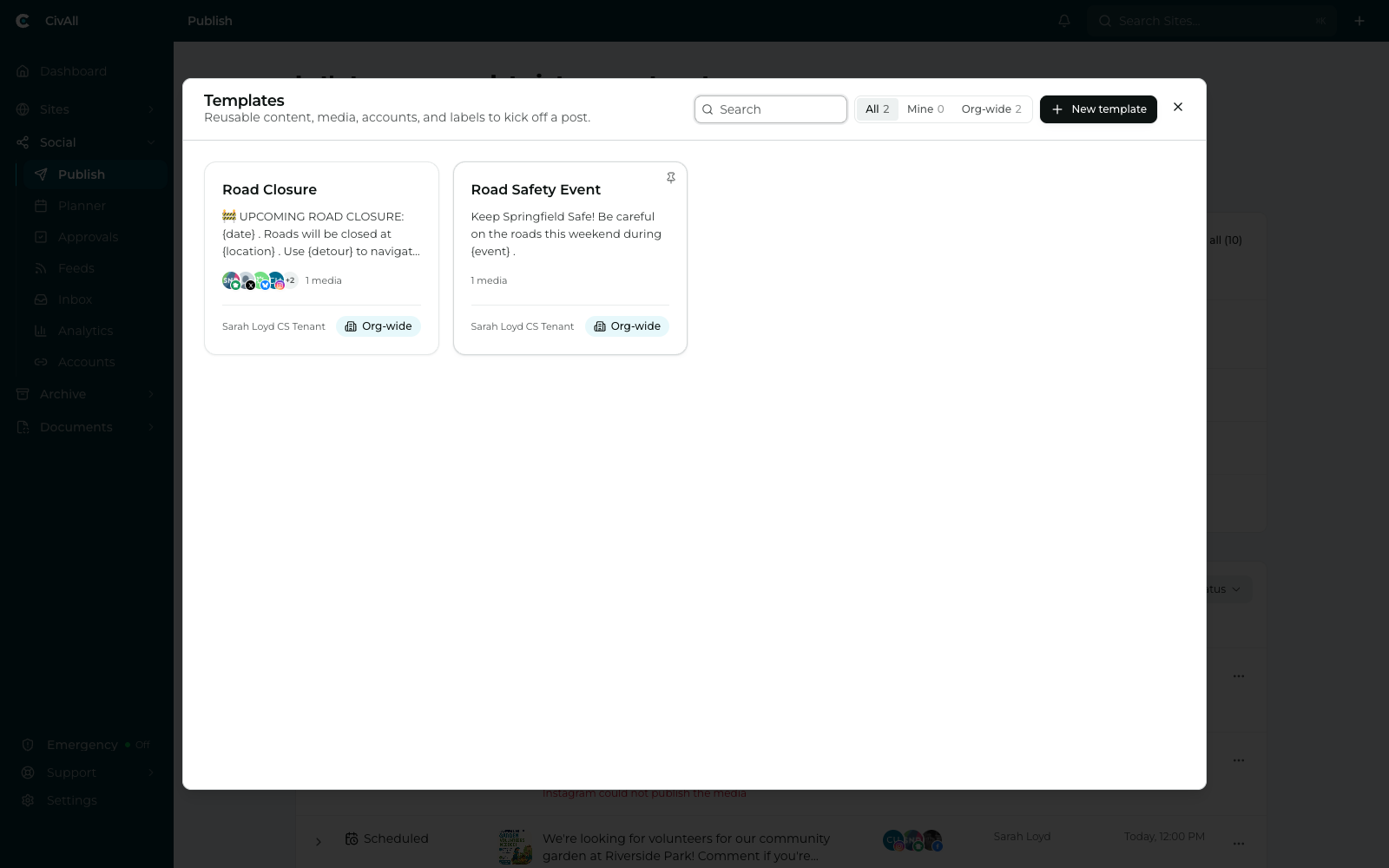
Add fill-in tokens with the Insert placeholder tool — the { } button in the text toolbar when you’re creating or editing a template. Each token appears in curly braces, like {event name}, {date}, or {location} (you don’t type the braces yourself). When someone starts a post from the template, CivAll detects the placeholders and prompts them to fill each one; the value replaces every occurrence across all networks.
Warning
A post can’t be published, scheduled, or queued while unfilled {placeholders} remain — the Guide flags them as a blocking error.
Using a template
Start from the Templates library (search and filter by All / Mine / Org-wide) — open it with From a template on the Publish dashboard or Browse all in the composer’s Guide panel — or pick a recent template directly from the Guide. Either way you get a normal post prefilled with the template’s content, media, accounts, and labels — from there it behaves like any other post. Applying a template to a draft you’re already writing replaces that draft’s content after you confirm. If a template references an account you can’t publish to, that account is dropped with a short notice.