Watch: custom reports
A short walkthrough of custom reports in Analytics. You can also watch it on YouTube.
The toolbar
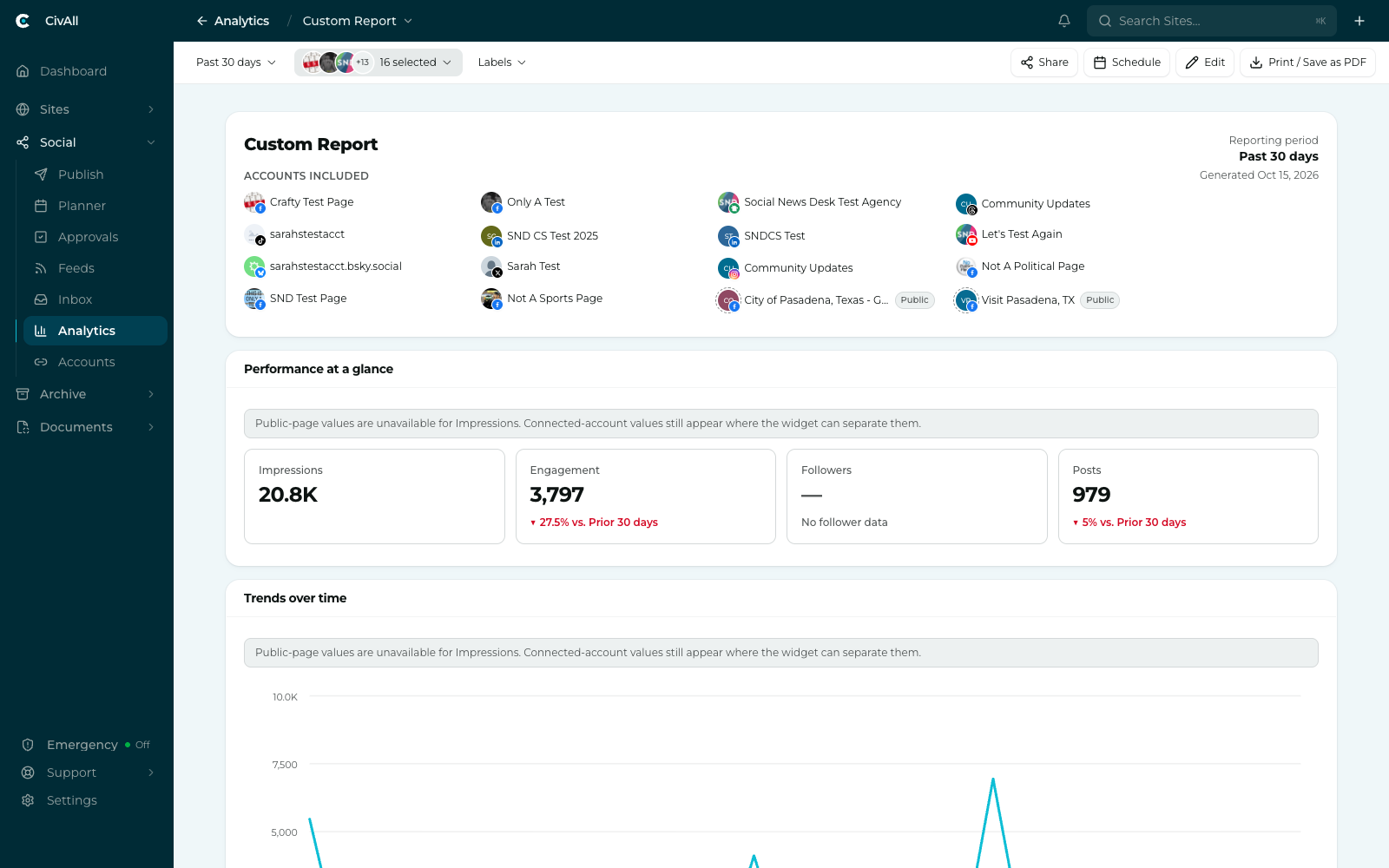
| Button | What it does |
|---|---|
| Share | Turns Share with everyone on or off. Only you can see a report until you share it. Shown only on reports you created. |
| Schedule | Opens the Schedule Email Report window. See Scheduling report emails. Shown only on reports you created. |
| Edit | Puts the whole report into edit mode; relabels to Save when you’re done. Shown only on reports you created. |
| Print / Save as PDF | Opens your browser’s print dialog, where you can print or choose Save as PDF. |
What a new report contains
A report created from the Custom Report option contains, top to bottom: a Report Header (title, agency name, period, accounts), a row of stat tiles (Impressions, Engagement, Followers, Posts), each with its change against the prior period, a time-series chart (Impressions and Engagement), a Metrics Summary table, a bar chart of engagement by platform, a Post Summary of your top 5 posts by impressions, and an engagement heatmap by day and hour. Start from scratch gives you an empty report instead, and the Scorecard Report and Video Views Report templates start from their own layouts.
The building blocks
Every report is an ordered stack of components. There are seven component types in the picker, and you can use any of them, more than once, in any order. Here’s what each shows and how you tailor it in Edit mode:
| Component | What it shows | Customize in Edit mode |
|---|---|---|
| Report Header | Report title, a subtitle (your agency name unless you change it), reporting period, the accounts included, and the generated-on date. One per report, pinned to the top. | Edit the title and subtitle, choose whether to show the accounts, date range, and generated date, and show accounts as avatars only or avatars and names. |
| Stat Tiles | A row of one to seven headline numbers, each with its change vs. the prior period. | Choose each tile’s metric (Reach, Impressions, Engagement, Clicks, Video Views, Followers, or Posts), add or remove tiles, optionally narrow the component to specific accounts, and turn the comparison off or change the period it compares against. |
| Time Series | A line chart of one or more metrics over the reporting period. | Pick up to three focus metrics to plot, set daily or weekly granularity, and optionally split a single metric by platform, account, or department. |
| Bar Chart | Bars comparing a metric across a dimension (the default is engagement by platform). | Choose the metric, what to group by (platform, account, content type, or department), Single / Grouped / Stacked style, and vertical or horizontal bars. |
| Post Summary | A ranked list of your top posts or accounts with a key metric beside each (default: top 5 posts by impressions, shown as cards). | Choose the breakdown (posts or accounts), the rank-by metric, highest or lowest first, how many items to show, and the display — Rows or Cards. |
| Metrics Summary | A table with one row per account, platform, or department, each with its metrics for the period. | Choose what to group by, which metric columns to show, the sort column, and how many rows to show (All, 5, 10, or 25). |
| Heatmap | A day-of-week × hour-of-day grid showing when a metric concentrates — handy for finding the best times to post. Many teams add more than one. | Choose which metric drives the intensity, and optionally narrow it to specific accounts. |
Editing the report
Click Edit to put the whole report into edit mode. Each component gains its own gear, and + insert dividers appear between components (and at the very top and bottom).
- Add a component — click a + divider and pick any of the seven components from the picker, which shows each as a small visual. Any component can appear as many times as you like.
- Configure — open a component’s gear to set the options listed in the table above; the component you’re editing is outlined in CivAll teal.
- Reorder — drag components up and down, or use the move up and move down buttons.
- Duplicate — use the component’s duplicate button to add a copy below it.
- Remove — use the component’s remove button and confirm. Stat tiles can be removed one at a time or as a whole row.
Note
A tile compares against the previous period of the same length. Where there’s no earlier data to compare against — a newly connected account, or a metric the network only started reporting — the tile says “Historical comparison unavailable” rather than showing a misleading change.
Two report-level controls shape all the data: the account picker (which accounts feed the report; defaults to all you can access) and the time period (presets from Today through Past year, or a custom range; default Past 30 days). Changing either re-queries every component and recomputes the prior-period comparisons. Click Save to keep your layout.
Tip
A report someone else shared with you is read-only: it shows who shared it, and Share, Schedule, and Edit aren’t available. Only the person who created a report can change it.
Warning
Reports use the same cached analytics data as the Analytics page — they’re not live to the second. The header’s agency name comes from your agency settings.