Starting a post
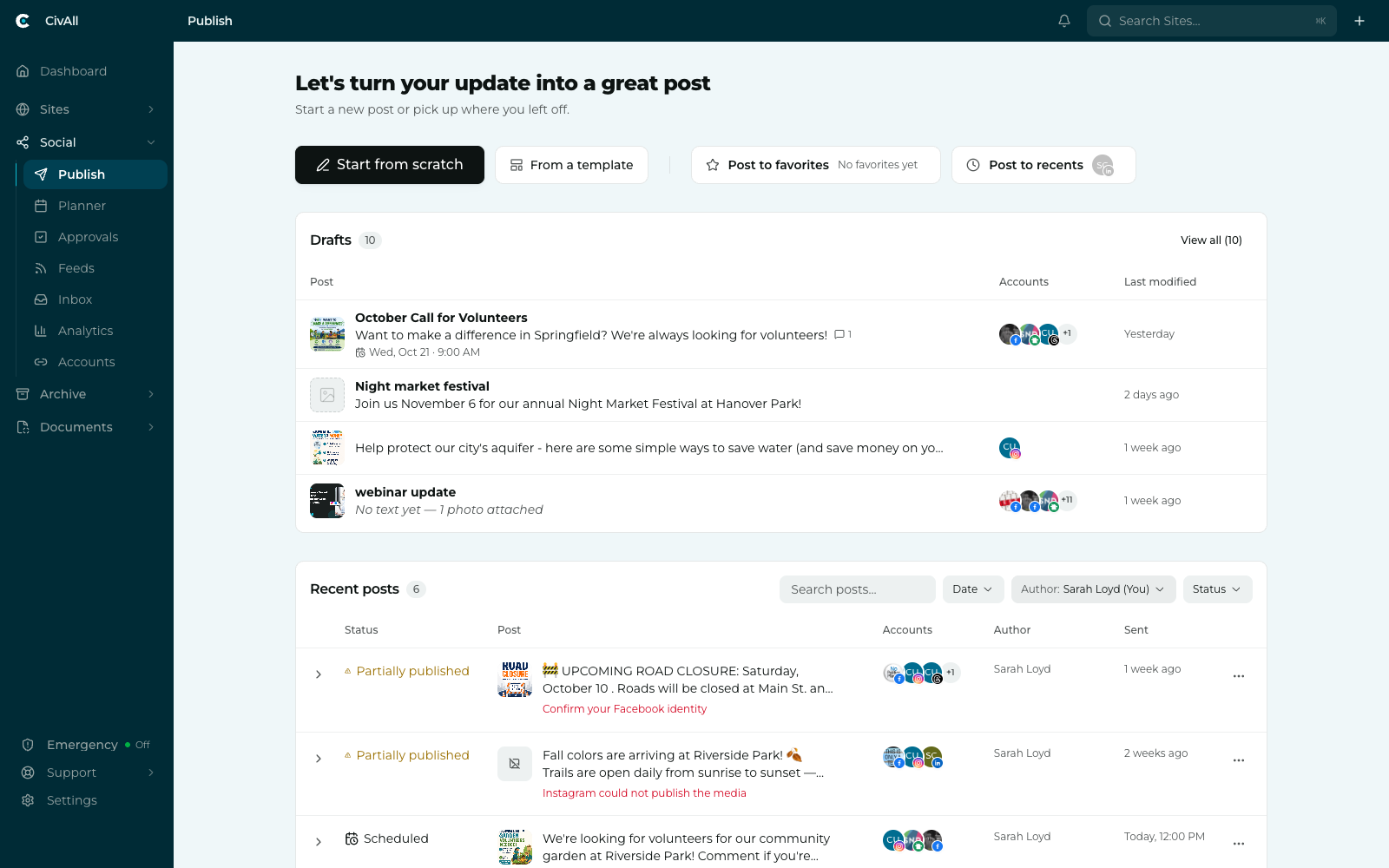
Four quick actions sit under the greeting. The first two start from nothing or from saved content; the second two start from a set of accounts you already use.
| Action | What it opens |
|---|---|
| Start from scratch | An empty composer with no accounts preselected. |
| From a template | The Templates picker. Choosing one opens the composer prefilled with its content, media, accounts, and labels. |
| Post to favorites | The composer with your favorited accounts preselected. If you haven’t starred any yet, the button says “No favorites yet” and opens the composer with no accounts preselected. |
| Post to recents | The composer with the accounts from your most recent published post preselected — the button shows their avatars. With no recent post, it says “No recent accounts.” |
Tip
Both account shortcuts stay visible even when they have nothing to offer — nothing is hidden or disabled just because you’re new.
Drafts
The Drafts section lists your unsent posts with a count beside the heading; it’s hidden when you have no drafts. A draft is visible only to you until you give it a name. A named draft can be shared with your team — the people or lock icon beside the name in the composer switches it between shared and private — and teammates who can compose or publish to all of its accounts can then see and edit it. Drafts teammates have shared with you appear here too, with an Author column.
- Post — a thumbnail (the draft’s media, or an Aa glyph for text-only) plus the draft’s name, if it has one, and the first line of text. A draft with an image but no words reads “No text yet — 1 photo attached”; a completely empty one reads “Empty draft.”
- Accounts — the accounts the draft is addressed to, as overlapping avatars with network badges.
- Last modified — relative time. The list is sorted newest-edited first.
Click anywhere on a row to reopen that draft in the composer. The section shows your four most recently edited drafts; click View all to expand the rest. To delete one of your own drafts, hover over its row and click the trash icon. In the composer’s breadcrumb switcher, drafts appear as Draft 1, Draft 2, and so on until you give them a name.
Recent posts
The lower table is post activity, with the in-flight and needs-attention items grouped to the top so problems don’t scroll away, then upcoming scheduled posts, then published posts.
| Status | Meaning |
|---|---|
| Publishing… | On its way out. Updates to a final status on its own — no refresh needed. |
| Checking outcome | The network didn’t confirm whether the post went out, and CivAll is rechecking. |
| Outcome unconfirmed | CivAll couldn’t confirm whether the post went out. Check the account before reposting. |
| Partially published | Live on some accounts, failed on others. The reason appears under the post text. |
| Failed | Didn’t publish anywhere. The reason appears under the post text. |
| Scheduled | An upcoming post. The time column shows when it will go out. |
| Published | Out cleanly on every account. |
A second line under the post text explains anything that isn’t a clean success — for example “Account with platformId … (facebook) not found or not active” or “Confirm your Facebook identity.” That line is the fastest read on what to fix.
Filtering
Four controls narrow the list: keyword search, a date range, an author picker, and a status dropdown. The author picker defaults to you but can be pointed at anyone — sent posts are visible organization-wide. The status dropdown — Publishing, Failed, Scheduled, Published — carries the counts, and Failed includes partially published and unconfirmed posts.
Row actions
Every row’s actions live behind its … overflow menu — there are no inline buttons. Click a row (or its chevron) to expand the per-account detail. What you get in the menu depends on why the row needs attention:
- Failed or partially published because of the content → Edit & retry, which reopens the post prefilled and resends only the accounts that failed, plus Clone post.
- Failed because of a broken connection → Reconnect account, which takes you to the Accounts page, plus Clone post.
- Outcome unconfirmed → Clone post only. Retry isn’t offered because the post may already be live.
- Scheduled → Edit scheduled post, which opens the post for editing.
- Published → Clone post.
A post that is still publishing has no menu.
Warning
There is no way to remove a post from the record — not here and not in Post history. Government communications are a public record, so history is deliberately immutable. If you delete the live post on the network itself, the record of it remains. The section shows a limited number of rows; View all posts → opens the full Post history.