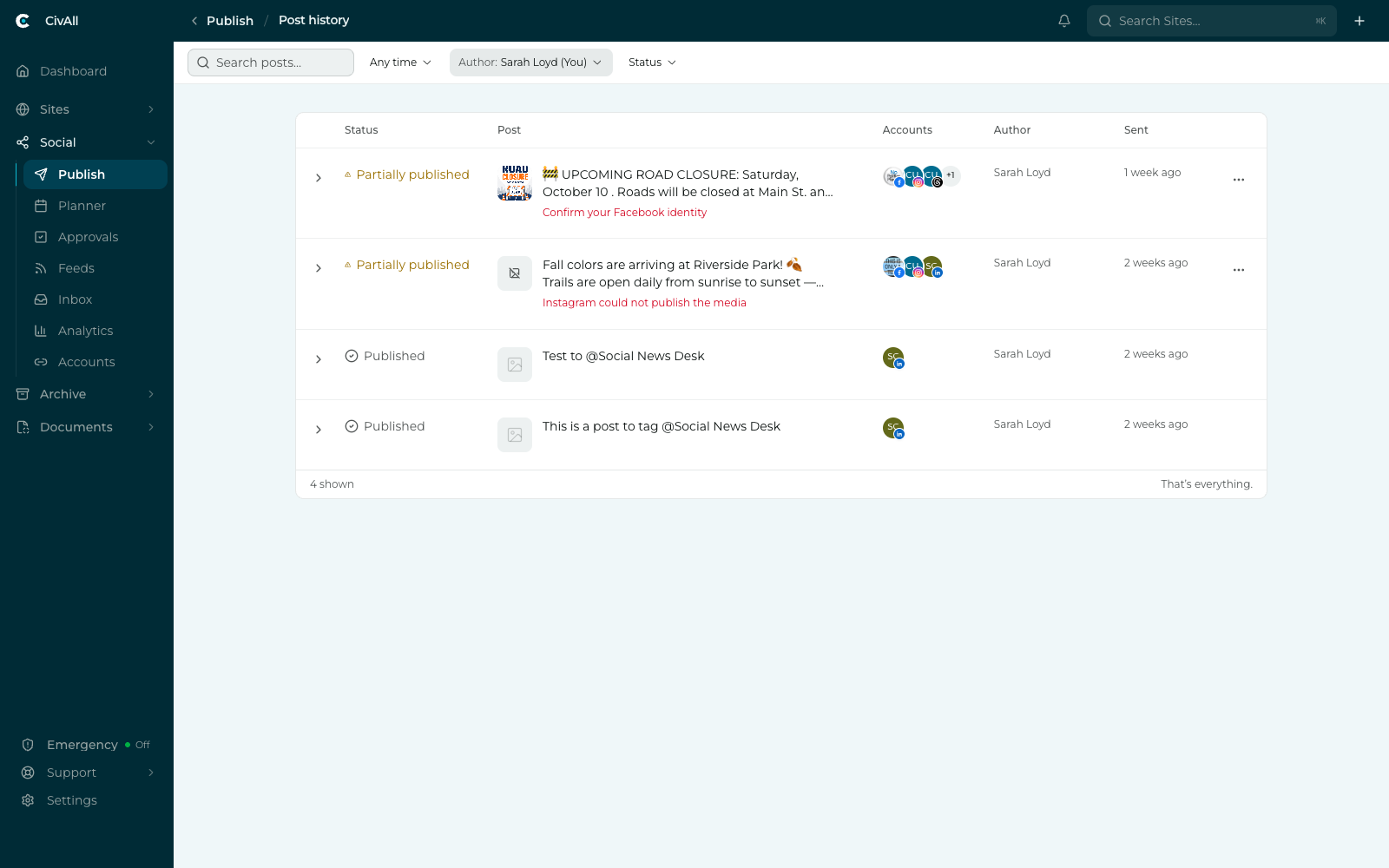
How it’s ordered
History is strictly chronological, newest first. Unlike the dashboard, it does not lift problem posts to the top — a failure from last week stays where it belongs in the timeline. Click Load more at the bottom of the list to see older posts.
Finding a post
The same four controls as the dashboard, in the same order: keyword search over post text and account names, a date range, an author picker, and a status dropdown. The author picker defaults to you; switch it to see a colleague’s posts. Filtering is done on the server, so it searches your whole history, not just the rows on screen.
Per-account detail
A post that went to several accounts succeeded or failed on each one independently. Expand a row with its chevron to see one line per account:
- The account’s own status icon, its name, and its network and handle — e.g. “Facebook · @SpringfieldPublicLibrary.”
- The specific reason for any failure, such as “Rejected — a photo or video is required.”
- The text and media that account received.
- A summary underneath: “1 of 2 accounts published.”
Each account line where the post published has its own … menu with View in Inbox, View on [network], Copy link, and Delete on [network]. Accounts where the post failed have no menu.
Deleting, and what it doesn’t do
Warning
Nothing can be removed from Post history. Delete on [network] appears in each account’s menu but isn’t available yet — to take a live post down, delete it on the network itself. The history record stays either way. This is deliberate: government communications are public records, and the history feeds CivAll Archive.
Row actions
As on the dashboard, actions live only in the row’s … menu — Edit & retry and Clone, described in Cloning posts & retrying failures. One difference worth knowing: in history, cleanly published rows have no overflow menu at all, and a post still publishing has no menu until it settles.