Watch: the Planner
A short walkthrough of the CivAll Planner. You can also watch it on YouTube.
Calendar and list views
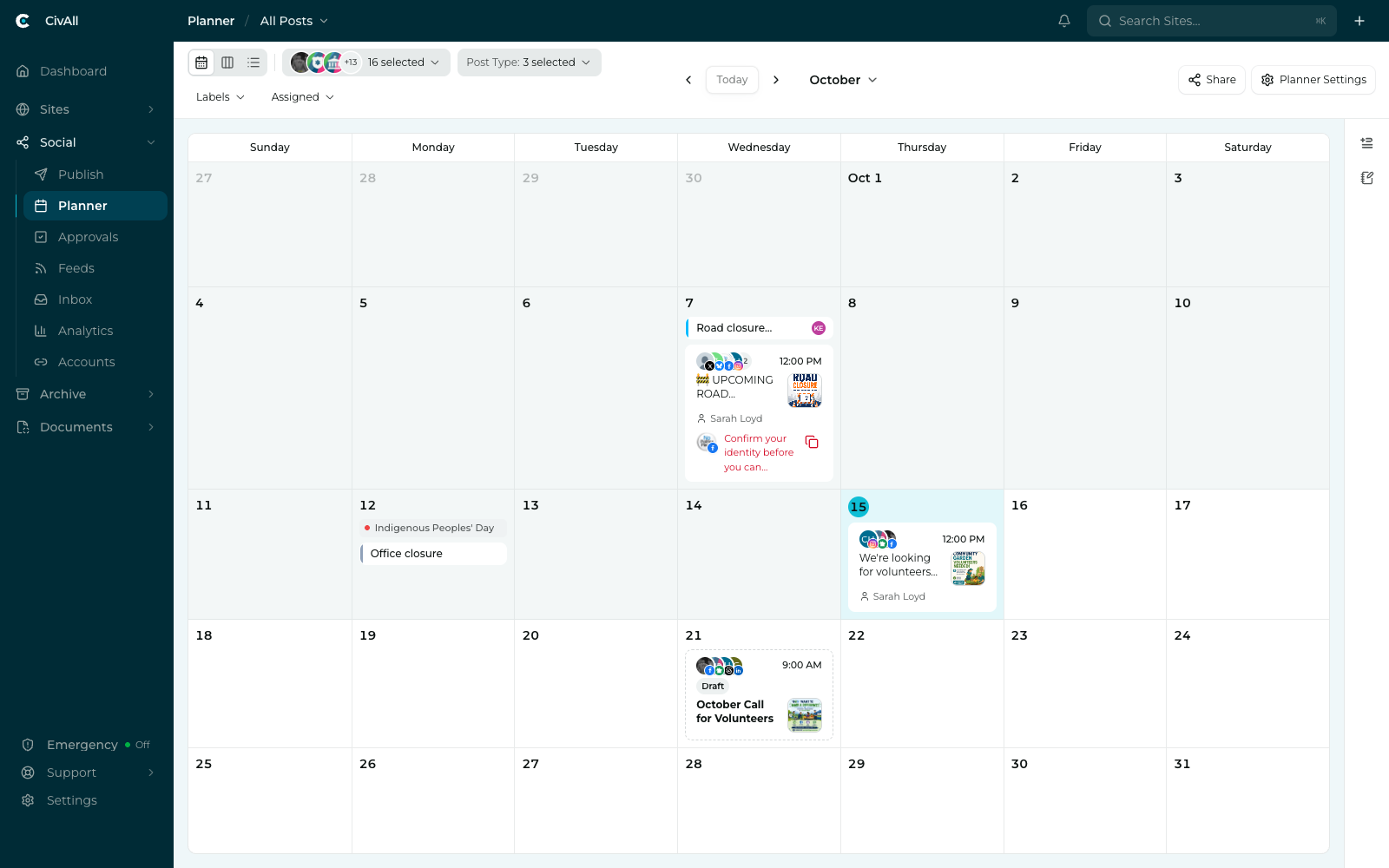
The Planner offers three views: Month (a month grid, the default), Week, and List. On a phone, the Planner always shows the list. In the month and week views, each post shows up as a card on its day with the platform icon, account, a text preview, and the time. Status is clear at a glance: Scheduled, Pending, Draft, and Published.
A draft that has a date and time also sits on the calendar, marked with a Draft pill. It never publishes on its own. See Collaborate with your team in CivAll Social.
The queue panel
A toggleable Queue panel docks on the right, showing ready-to-schedule posts you can drag onto the calendar. See Using the queue and Scheduling from the queue.
What you can do from here
- Create a post with the Planner’s mini composer — side by side with the calendar.
- Reschedule by dragging a card to another day.
- Preview a scheduled post exactly as it’ll render, by clicking it open.
You see posts for the accounts you have access to; times shown use each account’s publishing timezone, which is labeled when a view spans multiple zones.
Planner notes
A note marks something on the calendar that is not a post, such as a council meeting, a holiday, or a campaign week. Notes are for your team. They never publish to a social network.
Planner notes are not the same as the internal notes you leave on a post. Those stay attached to one post. See Collaborate with your team in CivAll Social.
Add a note
- In the Month or Week view, hover over today or a future day and click the note icon (New note). On a phone, tap the arrow next to New Post and choose New note. If you can’t create posts, the phone shows a New note button instead.
- Type a Note title. You can add details in the box below it.
- Under When, choose All day or At a time. For a timed note, set the time and time zone.
- Click Create note.
A timed note shows the time you set. If the note’s time zone is different from yours, the zone appears after the time, for example 9:00 AM EDT.
Note options
| Option | What it does |
|---|---|
| Multiple days | Stretches an all-day note across up to 31 days. It shows as a bar across those days. A multi-day note can’t repeat. |
| Repeats | Repeats the note every set number of days, weeks, or months. Weekly notes can repeat on chosen weekdays. Under Ends, choose Forever, On a date, or After N occurrences. You set the pattern when you create the note and can’t change it later. |
| Add labels | Adds the same labels you use on posts, so the Labels filter finds notes and posts together. |
| Assign to | Assigns the note to one teammate. They get a notification unless they assigned it to themselves. |
| Limit who can see this note | Limits the note to the departments and people you pick. The author and the assignee can always see it. This option appears only when your organization has more than one department. |
| Color | Pick Azure (the default), Green, Amber, Rose, Violet, Slate, or a custom color. |
Without a limit, everyone in your organization can see the note.
Edit, move, or delete a note
Click a note to see its details, time, labels, assignee, and who can see it.
- Edit it. Click Edit Note, make your changes, and click Save.
- Move it. Drag the note to another day. It keeps its time. A multi-day note moves as a whole and keeps its length.
- Delete it. Click the trash icon (Delete note), then click Delete Note to confirm. This can’t be undone.
Anyone who can see a note can edit, move, or delete it.
When you edit, move, or delete one day of a repeating note, CivAll asks what the change applies to: just that occurrence or every occurrence in the series. An occurrence you change on its own stops following later changes to the series.
Find notes on the calendar
The Post Type filter includes Notes, so you can show or hide them. Set the Assigned filter to Me to see only notes assigned to you. While that filter is on, posts are hidden.