The core idea
Each product a user holds gets one permission set. Individual permissions can be scoped to the whole organization or to the user’s own department. Administration is its own switch, outside the products entirely.
- One set per product, per user — no stacking. Sets don’t combine within a product.
- A set can span products. Most cover one, but some — like the tenant-wide Admin set — deliberately cover several at once.
- Products are independent. Changing someone’s CivAll Social set never touches their CivAll Archive access.
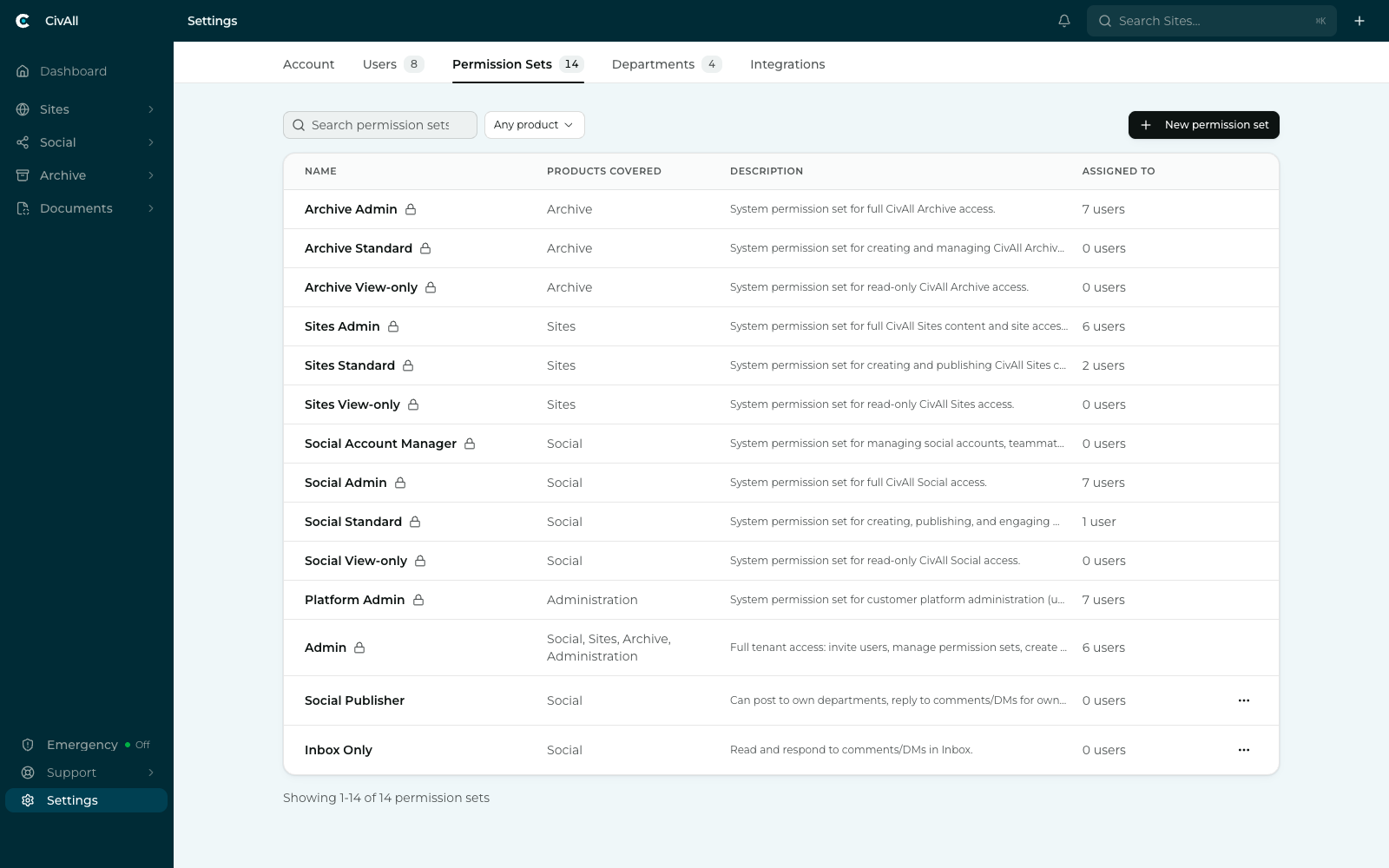
System sets
CivAll Social, CivAll Sites, and CivAll Archive each ship with three system sets, following the same pattern:
| Set | Intent |
|---|---|
| [Product] Admin | Full access to that product. |
| [Product] Standard | Day-to-day work — for CivAll Social, creating, publishing, and engaging with content. |
| [Product] View-only | Read-only access. |
So CivAll Social has Social Admin, Social Standard, and Social View-only, alongside the equivalents for CivAll Sites (Sites Admin, Sites Standard, Sites View-only) and CivAll Archive (Archive Admin, Archive Standard, Archive View-only). CivAll Social has a fourth system set, Social Account Manager — everything in Social Standard plus managing social accounts, teammates, and approval workflows. CivAll Documents has a single system set, Documents Admin. Two more sit outside that pattern: Platform Admin, covering Administration, and Admin, a full-tenant set spanning CivAll Social, CivAll Sites, CivAll Archive, CivAll Documents, and Administration.
Important
System sets are managed by CivAll and can’t be renamed or edited — they’re the baseline. To vary from them, create a custom set.
What’s inside a set
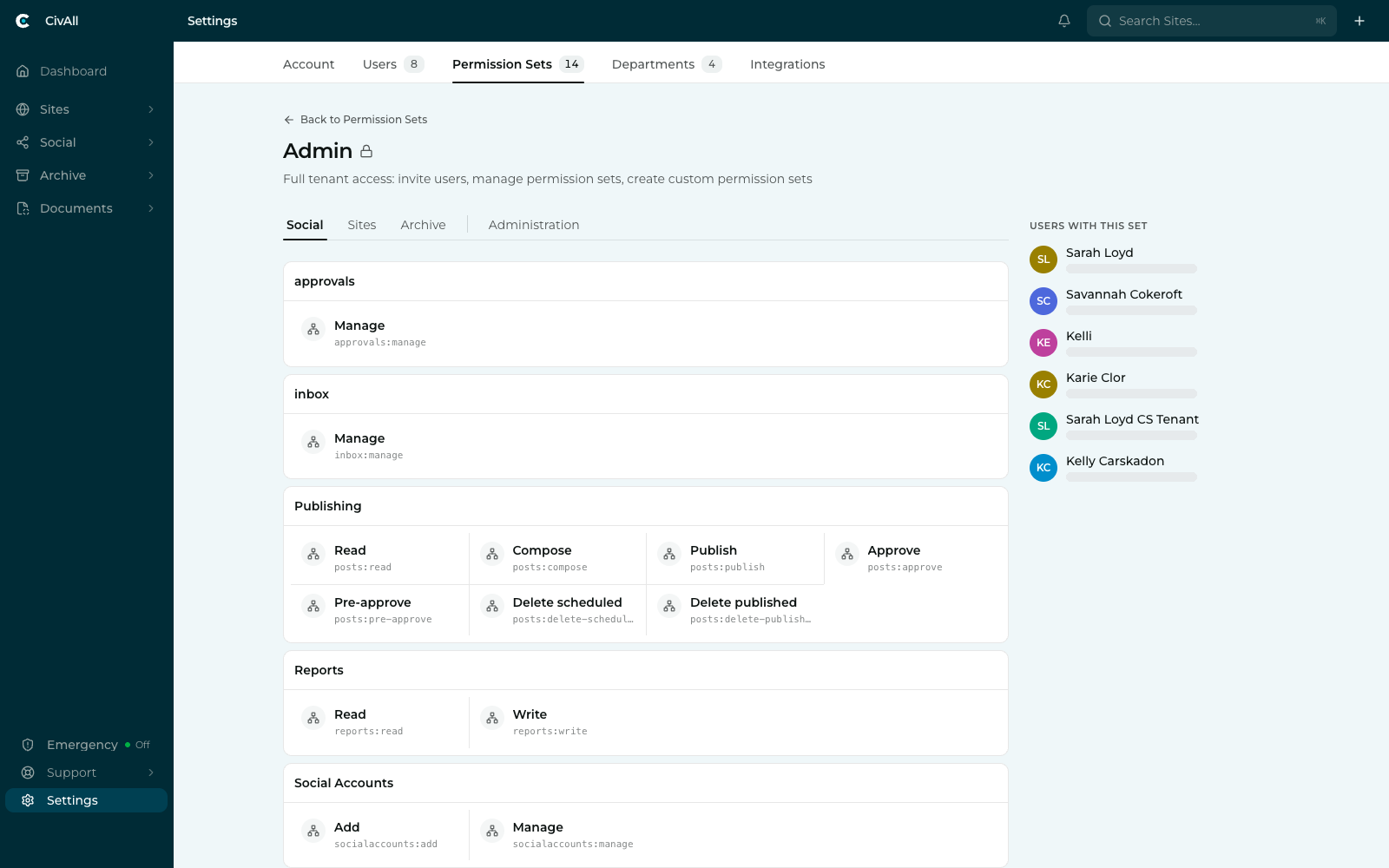
Open any set to see exactly which permissions it grants, grouped by area. For CivAll Social the groups are:
| Group | Permissions |
|---|---|
| Publishing | Read, Compose, Publish, Approve, Pre-approve, Delete scheduled, Delete published |
| Social Inbox | Read comments, Read DMs, Write comments, Write DMs |
| Social Accounts | Add, Manage |
| Social Users | Manage, Invite |
| Reports | Read, Write |
| approvals | Manage — who can configure approval workflows |
| inbox | Manage — inbox assignment, status, activity history, and records exports |
Each permission carries a technical name such as posts:publish or comments:write. You’ll see these in the interface and they’re handy when comparing two sets precisely.
Scope: where a permission applies
Many permissions carry a scope as well as an on/off state, which answers “where does this apply?”
| Scope | Meaning |
|---|---|
| All departments | The user can act across the whole organization. |
| Own department | The user is limited to their own department, and any sub-departments beneath it. |
Scope is what lets one set serve very different roles. The Social Publisher set, for example, grants Read at All departments so its holders can see the whole organization’s calendar, but Compose and Publish at Own department so they can only post as their own team.
Warning
Scope controls where a permission applies, never what it allows. Granting composing at “All departments” confers no administrative power — managing accounts or users still requires those specific permissions. Not every permission is scoped. Organization-wide ones — adding accounts, managing users — are simply on or off, because they don’t divide sensibly by department.
Building a custom set
When the system sets don’t match a role on your team, build your own. This requires administrator access.
- Go to Settings → Permission Sets and choose New permission set. A new set starts blank — there is no copy option — so to start from something close, open an existing set first to see what it grants.
- Give it a name and a short description — the description is what colleagues see in the list, so make it say who the set is for, e.g. “Can post to own departments, reply to comments and DMs for own department.”
- Work through the products — Social, Sites, Archive, Documents, and Platform Access each have their own tab. A set can grant nothing in a product; just leave its tab empty.
- Within each group, check the permissions you want — Select all takes a whole group at once, and each group shows a count like (6/7), or Mixed when scopes differ across it.
- For each scoped permission, choose All departments or Own department.
- Save. The set is now assignable exactly like a system one.
Warning
Editing a set changes everyone who holds it, immediately. Check Assigned to before you edit a set that’s in active use. When a change should affect one person only, give that person a different set instead of reshaping a shared one.
A note on approving posts
CivAll Social has a single Approve permission. Anyone who holds it, within their scope, is eligible to be an approver for accounts in that scope — and being an approver is also what lets someone publish without waiting. A Pre-approve permission still appears on sets that already hold it, but it isn’t offered when you build a set and has no effect — approval is a single step. See How approvals work.