Watch: Feeds
A short walkthrough of Feeds in CivAll. You can also watch it on YouTube.
Feeds are content sources
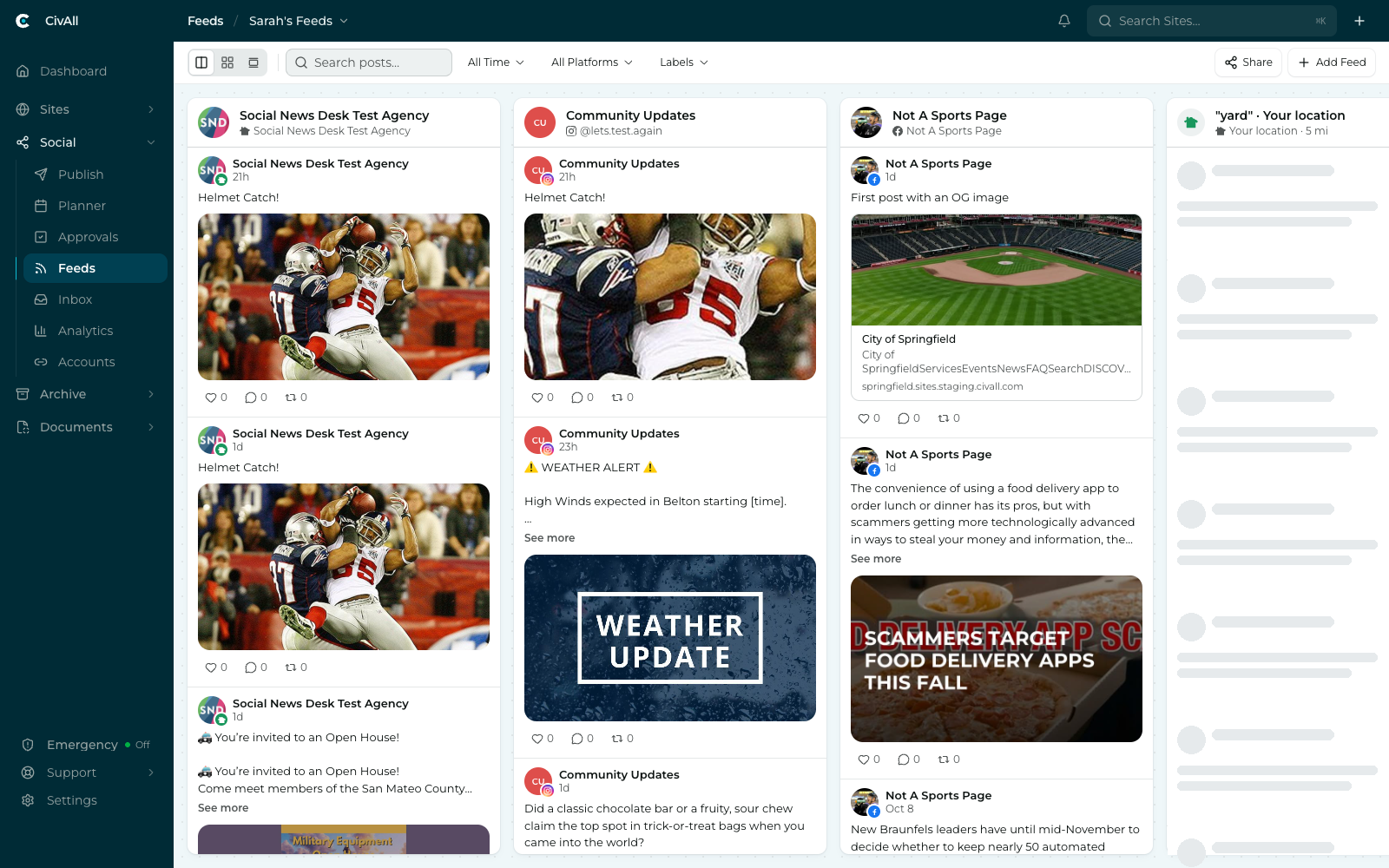
A feed is a content source — the posts from one connected account, a public search, or an RSS source. You can view your feeds in three layouts (columns, grid, or waterfall) and organize them into tabs (saved views). Add, remove, and reorder feeds, and your arrangement persists to the saved view.
Owned vs. public feeds
- Owned feeds pull from your organization’s connected accounts.
- Public / discovery feeds monitor sources you don’t own: searches, keywords, hashtags, and public Nextdoor content.
Layouts
Feeds offer three layouts, toggled by the Columns / Grid / Waterfall control in the Feeds header:
| Layout | Best for |
|---|---|
| Columns | The classic side-by-side board — one column per feed. |
| Grid | All posts in a view merged into one grid, with a Sort control (Most Recent, Engagement, Likes, Comments, or Shares). |
| Waterfall | A live monitoring stream. New posts drop in from the top with a brief highlight — ideal for a second screen during an event or emergency. |
Tip
In Waterfall, new posts only drop in while you’re scrolled to the top, so content never shifts under you while you’re reading. Scroll back up to see what arrived. Your last-used layout is remembered per saved view. Grid and Waterfall merge your account and RSS feeds; other feeds, such as Nextdoor and Instagram hashtag feeds, appear in Columns only.
Adding feeds
Use the Add Feed drawer. In the Columns layout you can also hover the gutter between two columns and click the + (“Add feed column here”) to insert a feed at that exact spot rather than at the end.
The Your accounts section of the drawer works like the Publish composer’s account picker: a search box up top, a Favorites group (expanded), then your Departments as collapsible groups with select-all controls. Confirming adds one feed per selected account.