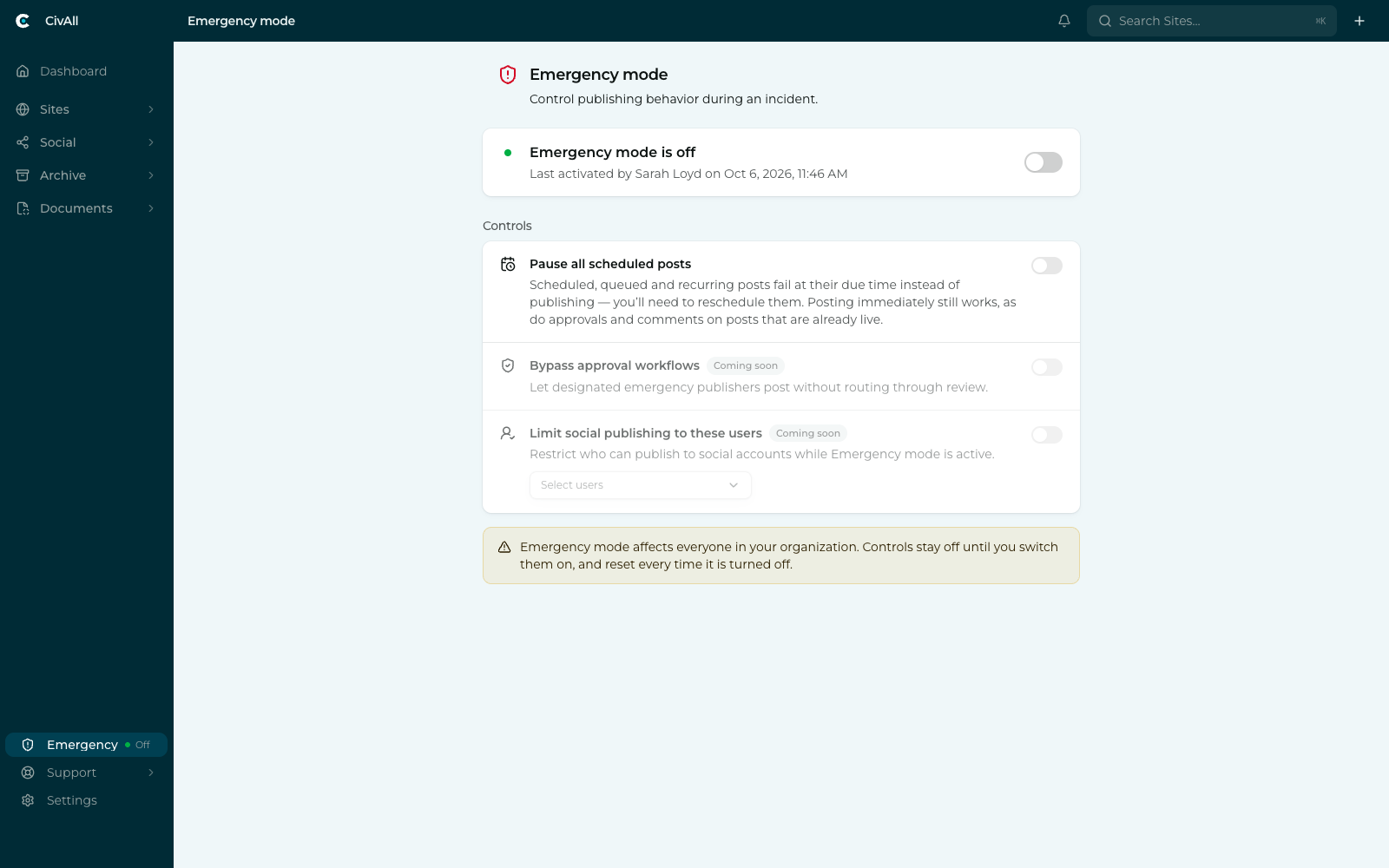
Finding it
The Emergency button sits at the bottom of the left navigation, just above Settings, and shows the current state at all times — a green dot and “Off” normally, switching to a red “On” badge when it’s active.
Note
Everyone can see the state; only administrators can change it. That’s deliberate — anyone wondering “are we still publishing?” can answer it from any screen without having to ask. Hovering the button while it’s active shows the reason it was turned on or, if no reason was given, who turned it on and when.
Turning it on
- Click Emergency in the left navigation. The screen opens over the content area; your navigation stays put.
- Switch the master toggle on. You’ll be offered a box to record why — optional, but worth filling in: it’s shown to everyone in your organization in the button’s tooltip and in the bar across the top of the app, and it’s recorded in the audit log. Then click Activate.
- Turn on the controls you actually want. They all start off.
Warning
Switching the mode on does not pause anything by itself. It unlocks the controls; you then choose which levers to pull. If you want posts held, you must also turn on Pause all scheduled posts. There’s no separate confirmation dialog, but nothing takes effect until you click Activate (Cancel backs out). The change applies to your whole organization immediately.
What “Pause all scheduled posts” does
| Held | Still works |
|---|---|
| Scheduled posts, including ones scheduled out of the queue | Publishing immediately — your emergency message must go out |
| Occurrences of recurring series | Submitting for approval, and approving |
| Scheduled comments on posts that haven’t published yet | Writing, editing, queueing, and scheduling content for later |
| Comments and shares on posts that are already live | |
| Inbox, reporting, and archiving |
The distinction is that execution is what’s paused, not your ability to work. Your team can keep preparing content for when the incident passes.
What happens to posts that were due
Important
A post whose time passes while paused fails — it is not held and sent later. You’ll see “This post was skipped while scheduled posts were paused. Please edit the post to reschedule.” Lifting the pause never floods your channels with everything that was missed — nothing publishes retroactively. The same applies to each missed occurrence of a recurring series; the series itself stays intact and picks up at its next occurrence after the pause lifts. When the incident is over, check the Planner for failed posts and reschedule anything that still matters.
While it’s on
A slim red bar reading “Emergency”, followed by the reason if one was given, runs across the top of every screen while the mode is on; for administrators it links to the Emergency mode screen. The navigation button carries the state too. In context you’ll see two reminders: the composer tells you if you schedule something while the pause is on, and held posts are badged in the Planner.
Turning it off
Switch the master toggle off. The pause lifts, the controls disable, and every control resets to off — so the next activation starts from a clean slate rather than silently inheriting last time’s settings. There’s no automatic timer; it stays on until someone turns it off.
The record
Turning the mode on or off, and each individual control, is written to the audit log with the user, the time, and the reason. After an incident, “who held the channels, and when?” is a question government agencies get asked — this is where you answer it.
Coming soon
Two further controls appear on the screen, grayed out and labeled Coming soon: Bypass approval workflows, to let designated emergency publishers post without review, and Limit social publishing to these users, to restrict who can publish at all during an incident. Neither does anything yet.