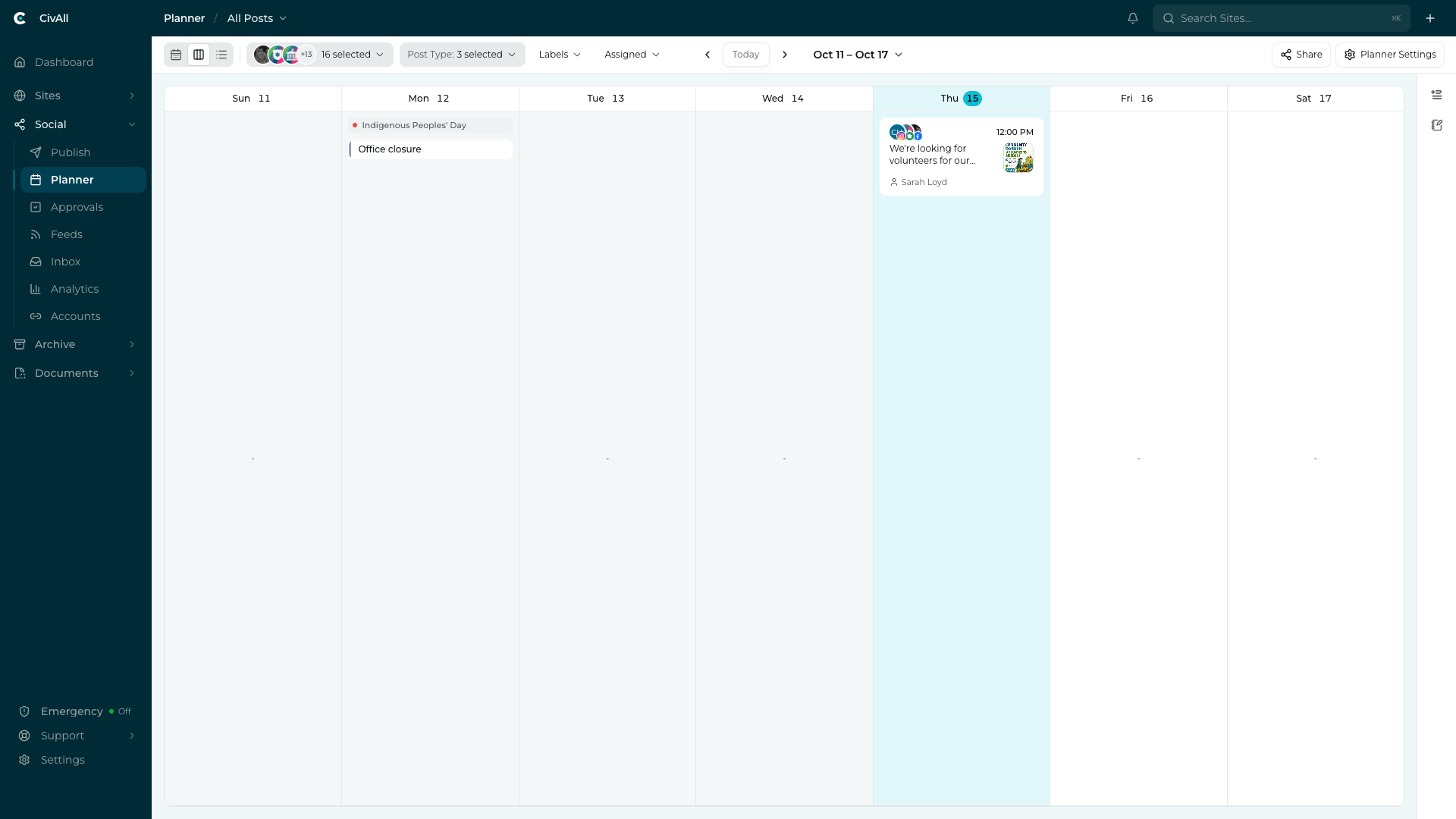
How to reschedule
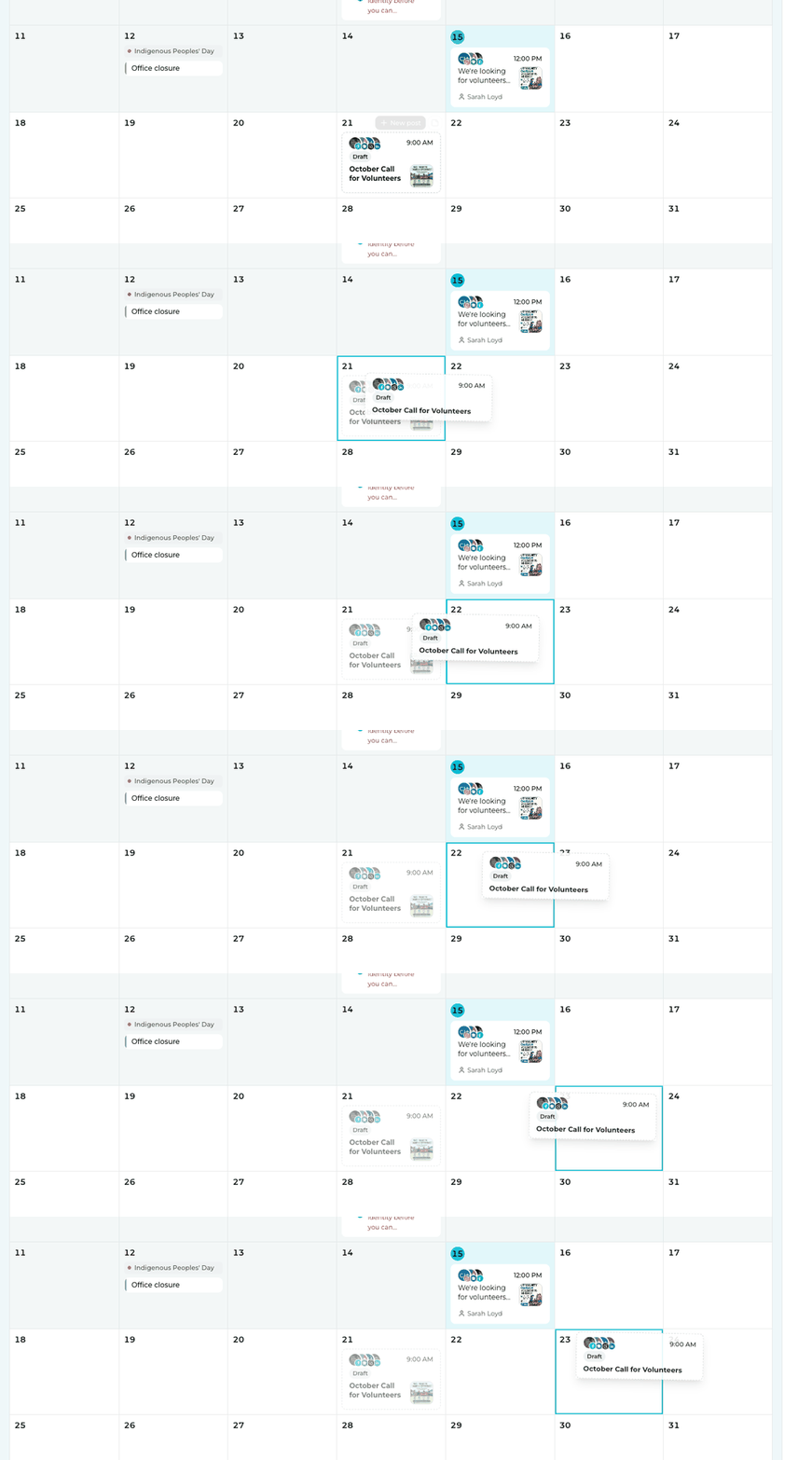
- In the calendar view, drag a post card from its current day to another day.
- The move happens instantly — no confirmation dialog. The post keeps its existing time; only the date changes. Two exceptions: if that time has already passed on the new day, or another post to the same account is already scheduled for that exact time, a small time entry opens so you can pick a new time before the move is saved. In the week view with Show hours on, dropping a post on an hour row also sets its time to that hour.
- To also change the time, use the Change time chip that appears on the moved card.
⏱️
The Change time chip is temporary — it fades after about 8 seconds. The countdown pauses while you’re hovering, focused on it, or have the time entry open, so it won’t vanish mid-edit. Missed it? Reschedule the time by opening the post with Edit Post in the mini composer.
Set the time from the chip
Click the chip to open a small time entry anchored to the card. It changes the time only (not the date) and is prefilled with the post’s current time. Click Update time to commit, or click away / press Esc to cancel. If you pick a time that has already passed (in the post’s timezone), you’ll see “That time has already passed.” and the button is blocked until you fix it.
Note
Rescheduling never restarts approval. A date or time change with no content edit leaves approval status untouched — an approved post stays scheduled at the new time, and a pending post stays pending with the updated time. (Only content edits re-trigger approval.)
What you can and can’t drag
- You can drag a post when you have access to every account it targets.
- Only scheduled posts and drafts can be dragged. Published posts are already out, and posts awaiting approval stay where they are.
- Dragging a recurring post asks which posts to move — Just this occurrence or This and all future posts. A recurring post can’t be dragged while one of its accounts has an approval workflow.
- Dragging a draft only changes its date. It stays a draft until someone clicks Finish, and a shared draft can’t be moved while a teammate is editing it. See Collaborate with your team in CivAll Social.
- No post can be dropped on a past day — scheduled posts and drafts alike.
- Dropping on the same day, or outside a day cell, does nothing.
If a move can’t be saved, you’ll see an error message explaining why. A brief Undo lets you put a post back after a move.