Watch: onboarding a social account
A short walkthrough of onboarding a social account to CivAll. You can also watch it on YouTube.
Before you start
You need both Social Accounts permissions — Add and Manage — to add an account. You’ll also need the right role on the platform itself — for example, Page admin access on Facebook, a Facebook-linked professional account on Instagram, or admin access on a LinkedIn company page. If you don’t have the right platform role, the connection is denied until it’s granted.
Add an account
- Go to Accounts and click Add Account (top right). The onboarding wizard opens.
- Platform. Select the platform you’re connecting. Facebook and Instagram are connected together. The wizard lists what CivAll Social will be able to do, then you authorize: a sign-in window opens for that platform, where you approve access.
- Accounts. CivAll lists the accounts it found, each with its handle and avatar. Select the ones to add and click Assign Access — this connects them.
- Access. For each account, choose one or more departments it belongs to, and add individual users if needed. Each department shows its member count and a preview of the users who will gain access. You are added to the account automatically. These assignments save as you make them.
- Review. Each account shows as Assigned or Unassigned, with its departments and the users who gain access. Use Edit to go back and change an account’s access, then click Done.
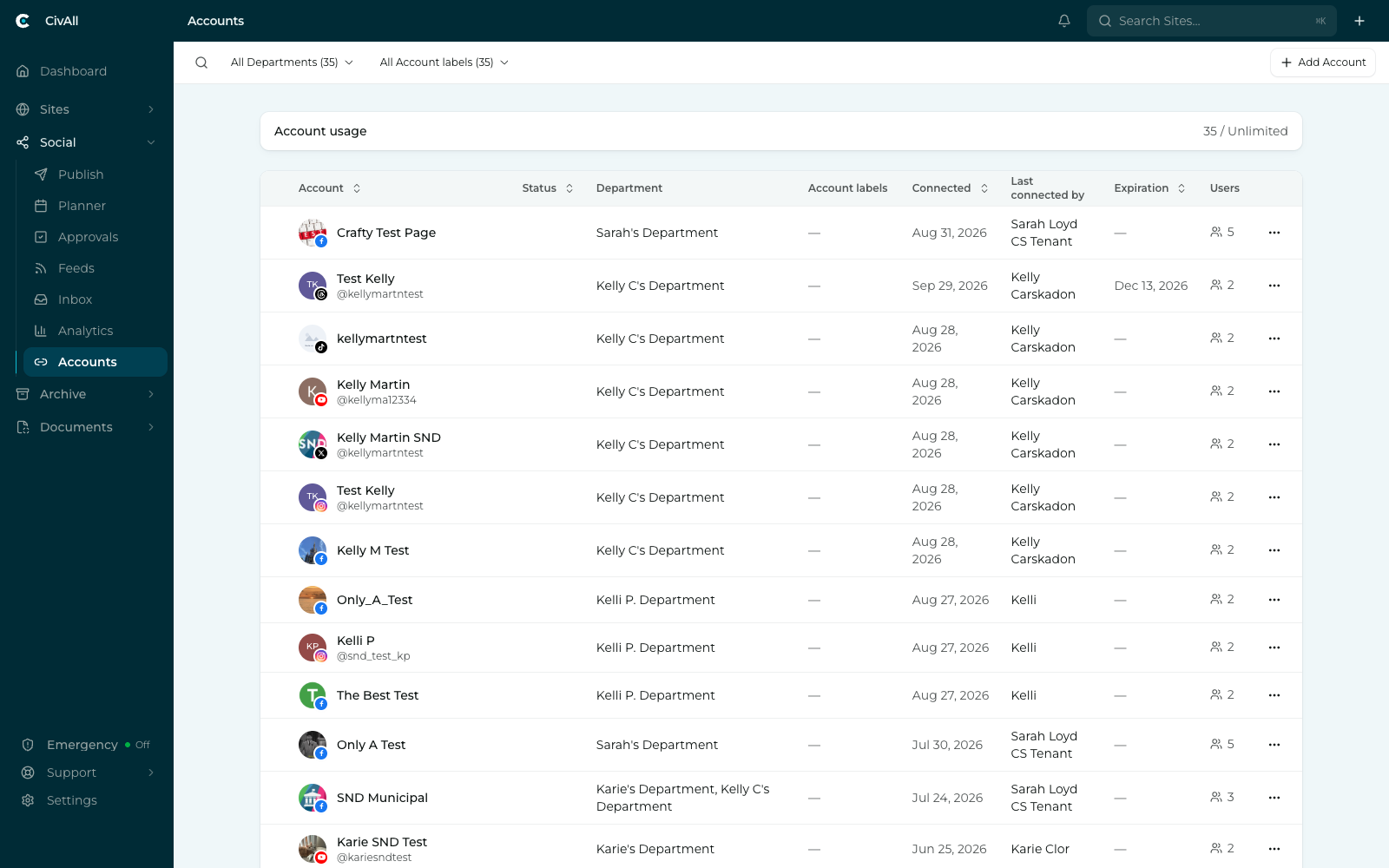
On success the account appears in the Accounts table right away, with its status, department, connected date, and a count of users who can work it. From there you can add another account or start publishing.
Tip
Access is automatic through departments. Once an account is in a department, everyone in that department can work it at the level their permission set allows — there are no per-account grants to set up. Add the account to another department later and those users gain access instantly; the same happens when a new teammate joins a department.
If something goes wrong
- Authentication failed — you get a clear error and can retry without losing your progress. A common cause is signing in as the wrong handle, channel, or user.
- Sign-in window blocked — if your browser blocks the pop-up, the wizard says so and offers an Open sign-in window button.
- Already connected — accounts already in CivAll are marked Connected in the list, so you don’t add a duplicate.
- No department chosen — you can still finish, but the Review step marks the account Unassigned and warns that only admins will see it until you assign a department or user.