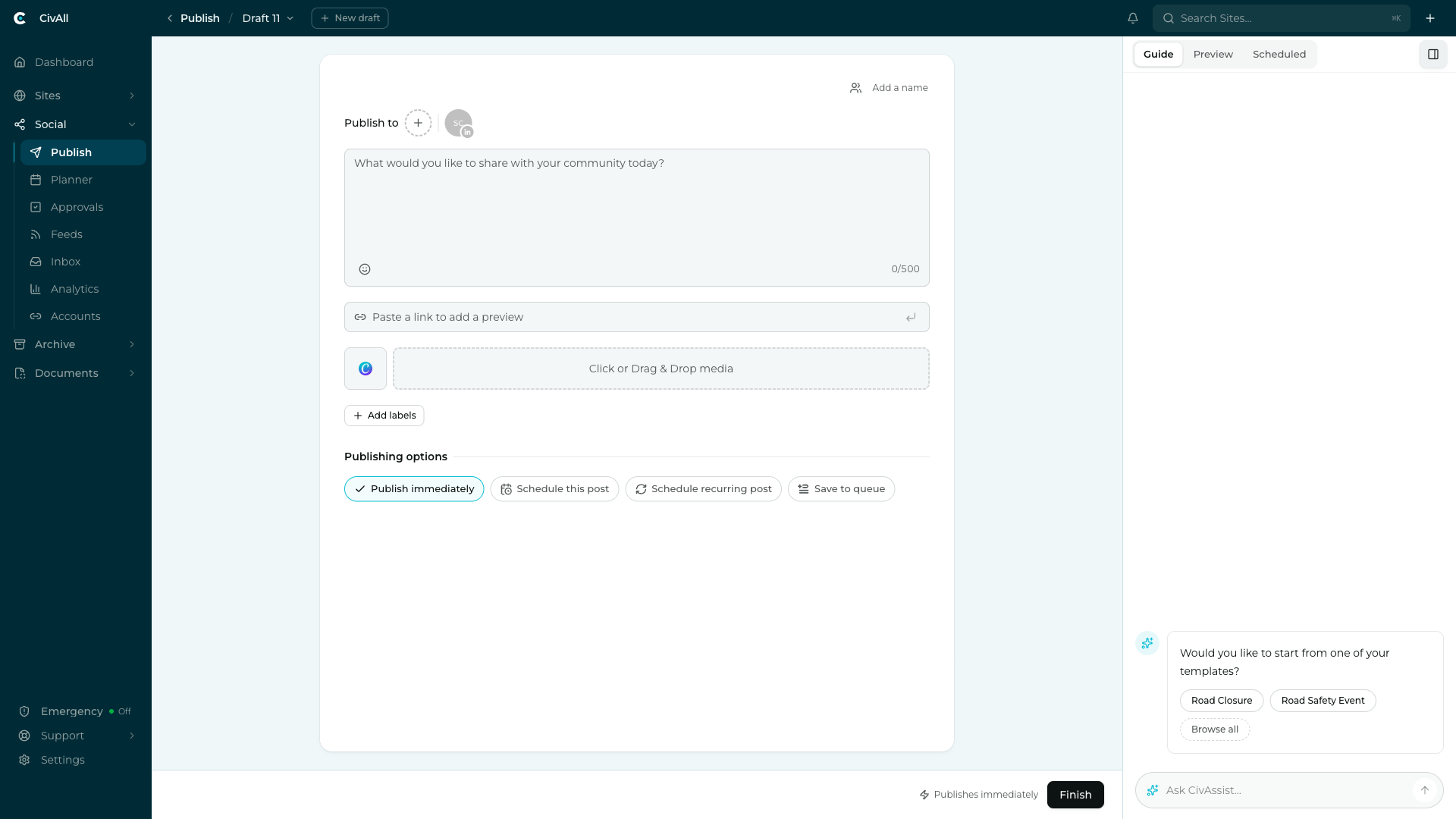
Watch: publishing a post
A short walkthrough of publishing a post in CivAll. You can also watch it on YouTube.
Write a post
- Open the composer. Click Publish under Social in the navigation, then Start from scratch on the Publish dashboard.
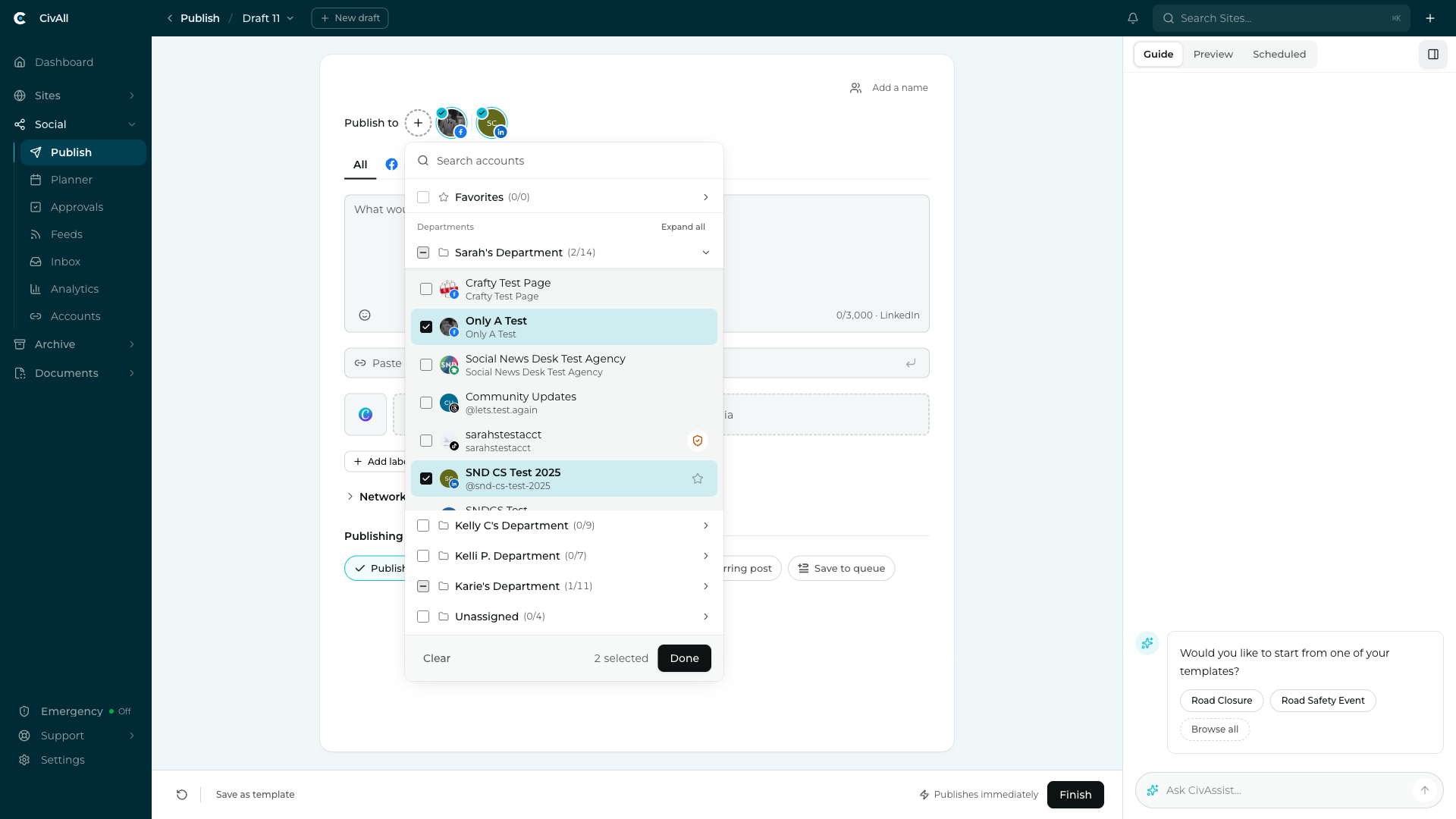
- Select accounts in the Publish to row at the top of the composer card.
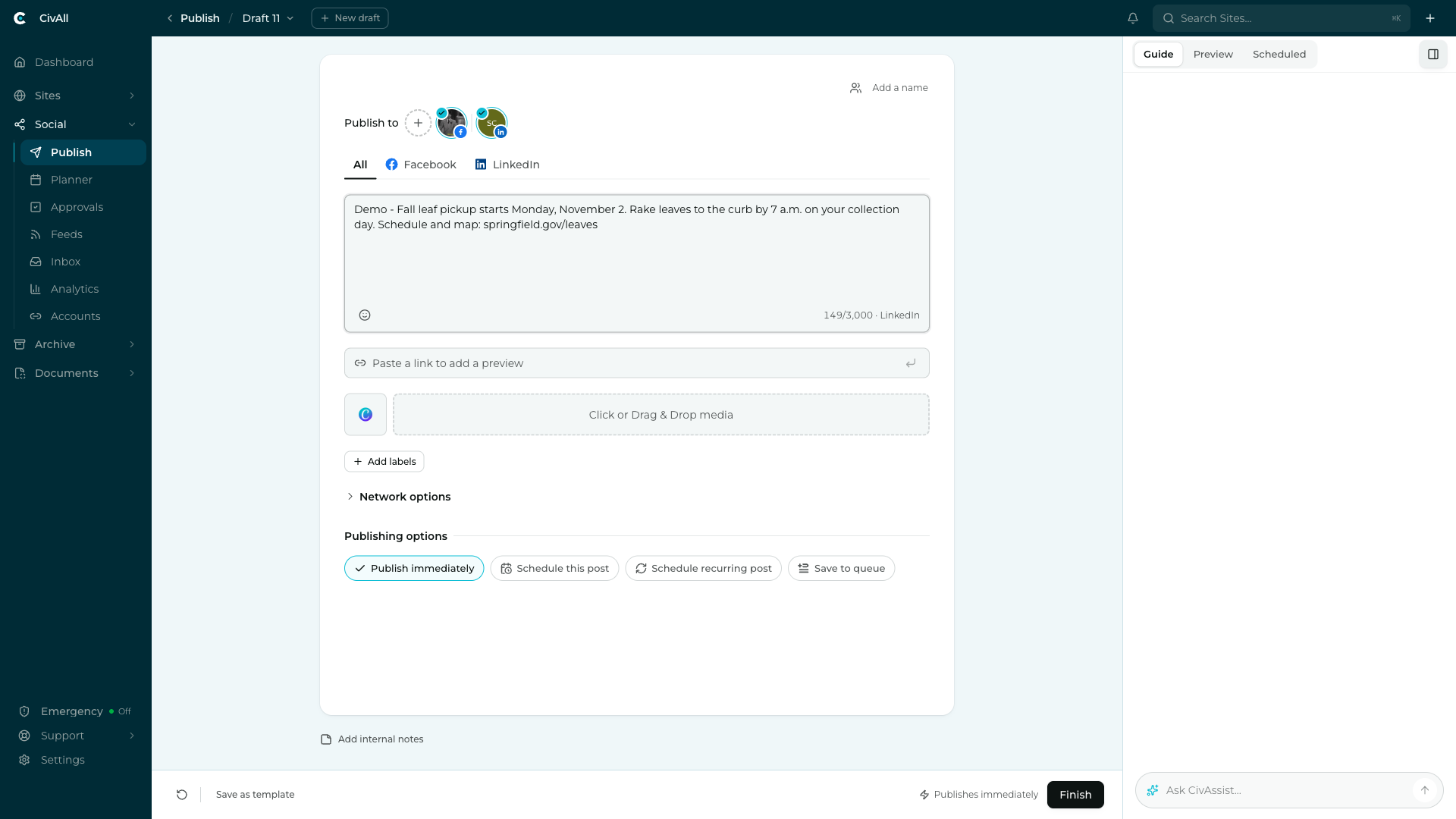
- Once you’ve selected accounts on two or more networks, network tabs appear (an All tab plus one per network) so you can tailor the copy per platform. The character counter switches from a neutral 0/500 to the tightest selected network’s real limit.
- Add media or a link. Click the Click or Drag & Drop media area to browse for a photo or video, or drop a file onto it. To add a link preview, paste the URL into the Paste a link to add a preview field. Each uploaded image gets alt text for screen-reader users. CivAll writes a short description for you as soon as the image uploads, marked AI-generated. Read it and edit it if it misses something, like who is pictured. See Alt text and AI descriptions.
- Optionally name the post with Add a name on the top row of the card. The name is internal and is never published. See Collaborate with your team in CivAll Social.
- Optionally add labels — internal tags used for tracking and filtering — with + Add labels below the media area.
The Guide, Preview, and Scheduled panel
The right side of the composer has three tabs:
- Guide — where CivAssist lives. It suggests templates to start from and lists anything in the post that needs attention. There’s an Ask CivAssist… box at the bottom for questions about the post you’re writing.
- Preview — live per-account cards showing your post the way residents will see it.
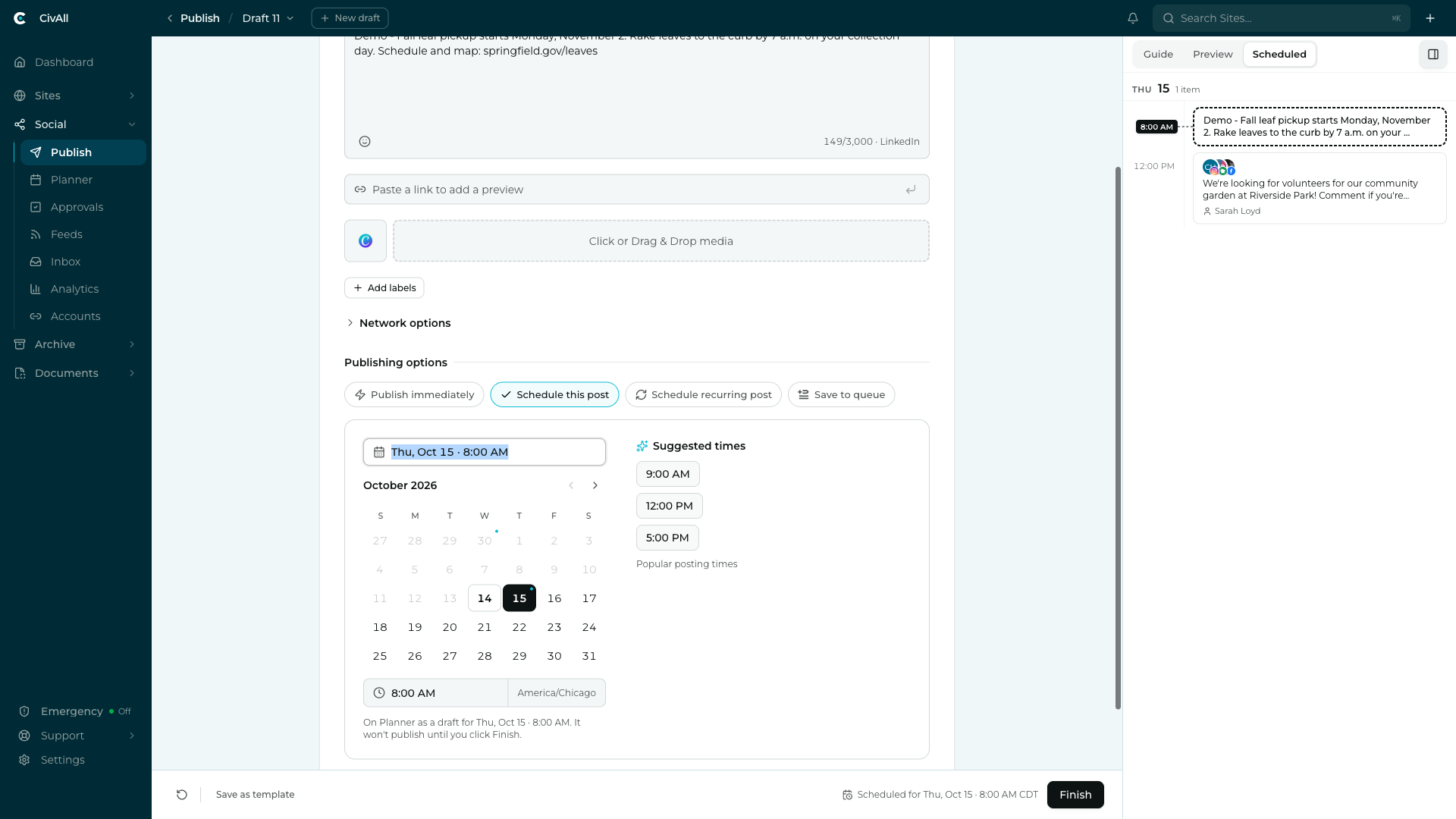
- Scheduled — an agenda of what’s already scheduled on the selected accounts, so you can spot conflicts.
The Guide is where problems surface. Blocking errors (for example, “Instagram requires an image or video”) and gentle advisories, under the heading “A thought before you post”, are pinned just above the Ask CivAssist… box. Affected network tabs also get a small dot.
Choose a publishing option
Below the post, a Publishing options row lets you pick one of four paths. The bottom action bar mirrors your choice, and Finish carries it out.
| Option | What it does |
|---|---|
| Publish immediately | Sends the post right away (subject to approval — see below). This is the default. |
| Schedule this post | Opens a date/time panel to publish at a set time. See Scheduling and recurring posts. |
| Schedule recurring post | Sets up a repeating series. |
| Save to queue | Adds a finished, ready-to-schedule post to the queue without a time. |
Warning
If the account requires approval and you’re not an approver, choosing Publish immediately or Schedule submits the post for review rather than sending it, and the button reads Submit post for approval instead of Finish. It goes live only after an approver signs off. Schedule recurring post isn’t available for accounts that require approval. See How approvals work.
Tip
Switching publishing options keeps what you’ve entered — if you set up a schedule, toggle to another option, then switch back, your schedule is still there.