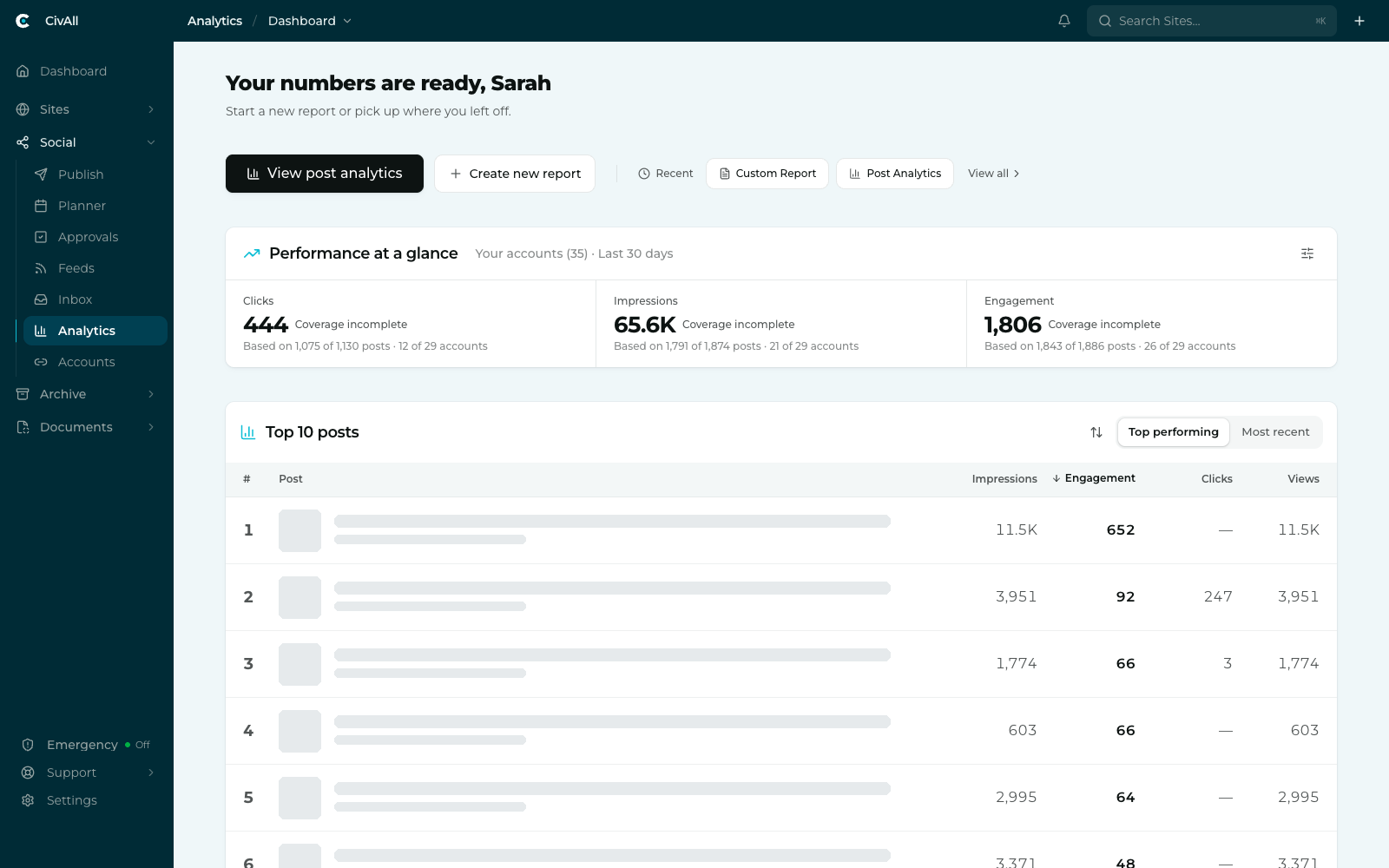
Opening and starting reports
A row of actions sits across the top of the page:
| Action | What it does |
|---|---|
| View post analytics | Opens Post Analytics — performance across individual posts, with impressions, engagement, clicks and more, as a sortable table. Learn more |
| Create new report | Opens the Create a new report window, where you pick a starting point: Start from scratch, Custom Report, Scorecard Report, or Video Views Report. Learn more |
Recent sits beside them with your two most recently opened reports, and View all opens All reports — every saved report with its type, owner, and when it was last opened. Archive and restore reports from there.
Performance at a glance
A panel of headline numbers — Clicks, Impressions, and Engagement by default — across your accounts for the last 30 days, each with its change against the previous 30 days and no setup required. Use the control at the top right of the panel to choose which metrics appear: Posts, Clicks, Views, Impressions, and Engagement.
Warning
Read the small print under each number. When a figure doesn’t cover everything, the tile shows what it’s actually based on — for example “Based on 1,255 of 1,267 posts · 8 of 23 accounts”. It shows Coverage incomplete in place of a percent change when metric capture is still incomplete for one or both periods. Networks vary in what they return, so treat these as an indication rather than an exact total, and use a full report when the number has to be defensible.
Top 10 posts
Your ten strongest posts from the last 30 days, each with its thumbnail, account, date, and its impressions, engagement, clicks, and views. Toggle between Top performing and Most recent, and use the Rank by control to choose which metric orders the list — Engagement by default. It’s the quickest way to answer “what worked this month?” before you build anything formal.